
How to Extract Just the Content You Want with CSS Selectors
By default FireScraper already strips the obvious noise — scripts, styles, nav bars, headers, and footers — from every page it crawls. But sometimes "the obvious noise" isn't enough. A docs page might wrap its real content in a <main> element surrounded by a sidebar, a table of contents, related-article cards, and a comments widget. You want the article. Nothing else.
That's what the Content CSS selector does: you give FireScraper one selector, and it keeps text only from elements that match — discarding everything outside them.
Who this is for
- Anyone scraping article or docs content who wants the body text without the surrounding chrome.
- Teams building clean datasets where stray sidebar or "related posts" text would pollute the output.
- People targeting one component on a page — a product description, a FAQ section, a single panel.
A concrete example
Take a page like quotes.toscrape.com. Each quote on the page is wrapped in a div with the class quote:
<body>
  <nav>...site navigation...</nav>

  <div class="quote">
    <span class="text">"The world as we have created it is a process of our thinking."</span>
    <small class="author">Albert Einstein</small>
    <div class="tags">change deep-thoughts thinking world</div>
  </div>

  <div class="quote">
    <span class="text">"It is our choices that show what we truly are..."</span>
    <small class="author">J.K. Rowling</small>
  </div>

  <footer>...login links, copyright, pagination...</footer>
</body>
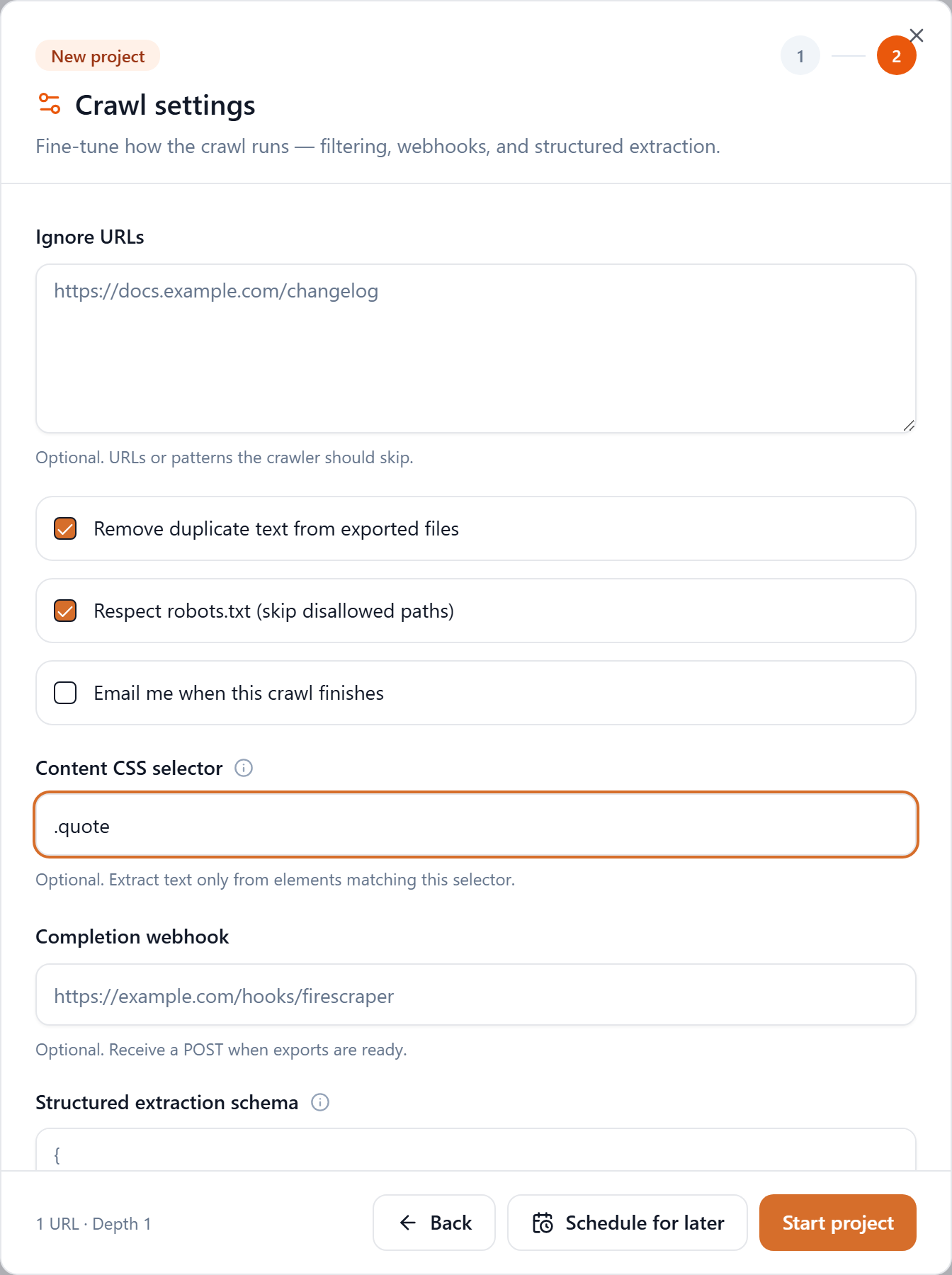
If you crawl the page as-is, the export includes the quotes and whatever survives from the navigation, pagination, and footer. Set the Content CSS selector to .quote and FireScraper keeps only the text inside those quote blocks — every quote, its author, and tags, and nothing else.
The settings at a glance
- Start URL
- https://quotes.toscrape.com/ (or your own site)
- Crawl depth
- 1 — the seed page plus what it links to
- Content CSS selector
- .quote — keep only matching elements
- Remove duplicate text
- On
- Respect robots.txt
- On
Step 1: Create a new project
Click New project, name it, and paste your start URL.
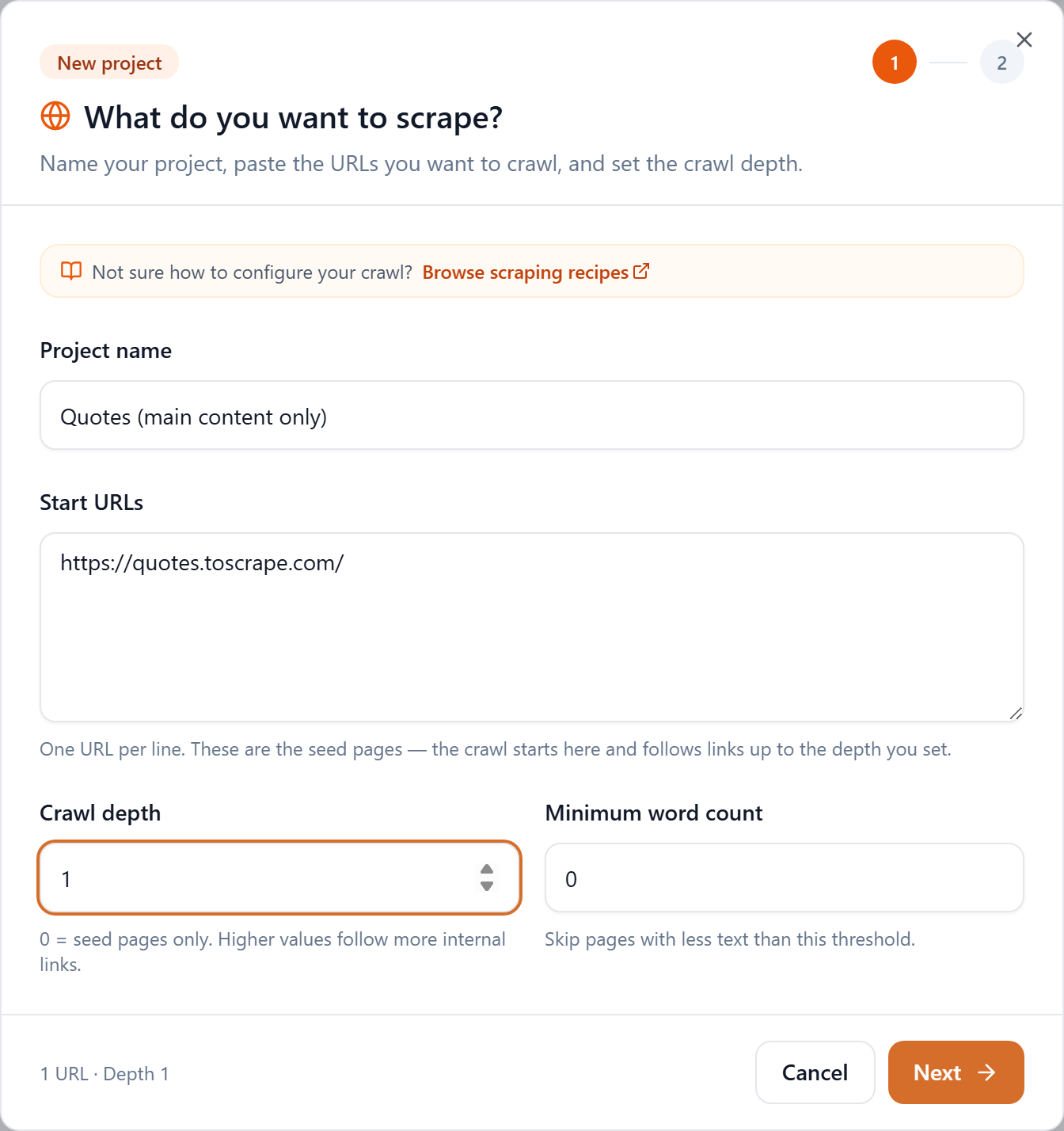
Step 2: Set the content CSS selector
Click through to step 2. In the Content CSS selector field, enter the selector that wraps the content you want — here, .quote.
Choosing a selector
The field accepts standard CSS selectors — the same things you'd use in a stylesheet or document.querySelectorAll:
| Selector | Keeps text from |
|---|---|
| main | The page's <main> element |
| article | Every <article> element |
| .post-body | Elements with class "post-body" |
| #content | The element with id "content" |
| main, .post-body | Either one (comma = match any) |
To find the right selector, open the page in your browser, right-click the content you want, choose Inspect, and look at the element's tag, id, or class.
Two things worth knowing:
- Comma-separated selectors are OR'd together —
main, .article-bodykeeps text from elements matching either, which is handy when pages on the same site use different markup. - If the selector matches nothing on a page, FireScraper falls back to the whole page rather than returning an empty result — so a too-specific selector quietly gives you everything back. If your output looks like it still has the chrome, double-check the selector against the actual HTML.
Step 3: Run it and download
Start the project. When it finishes, download any format — Markdown, Documents JSONL, CSV, whatever fits your pipeline. The text in every export now reflects only the elements your selector matched.

Tips
- Start broad, then tighten. Try
mainorarticlefirst; only reach for a class or id if the broad selector still pulls in clutter. - Combine with Ignore URLs. The selector controls what on a page you keep; Ignore URLs controls which pages you crawl. Use both for a clean result.
- Same selector, whole site. The selector applies to every crawled page, so it works best when a site uses consistent markup. For mixed layouts, list several selectors separated by commas.
Extract exactly the content you want
Point FireScraper at a site, target the right element, and get clean output. New accounts get 1,000 free credits.