
Web pages are noisy. Navigation bars, cookie banners, ads, footers, and scripts all get in the way of the thing you actually want: the words on the page. Markdown strips all of that away and leaves you with clean, portable text you can read anywhere, search instantly, drop into Obsidian or Notion, or hand to an LLM as context.
This recipe shows you how to point FireScraper at a website and get back every page as a clean Markdown file — no code, no cleanup.
Who this is for
- Readers and researchers who want an offline, distraction-free copy of a site.
- Note-takers importing reference material into Obsidian, Notion, or Logseq.
- Anyone feeding an LLM who needs clean text instead of raw HTML.
The settings at a glance
If you just want the configuration, here it is. The rest of this post explains each choice.
- Start URL
- https://example.com (the site you want to save)
- Crawl depth
- 2 — follow internal links two levels deep
- Minimum word count
- 0 — keep every page
- Remove duplicate text
- On — drop repeated boilerplate
- Respect robots.txt
- On — only crawl allowed pages
- Export format
- Markdown
Step 1: Create a new project
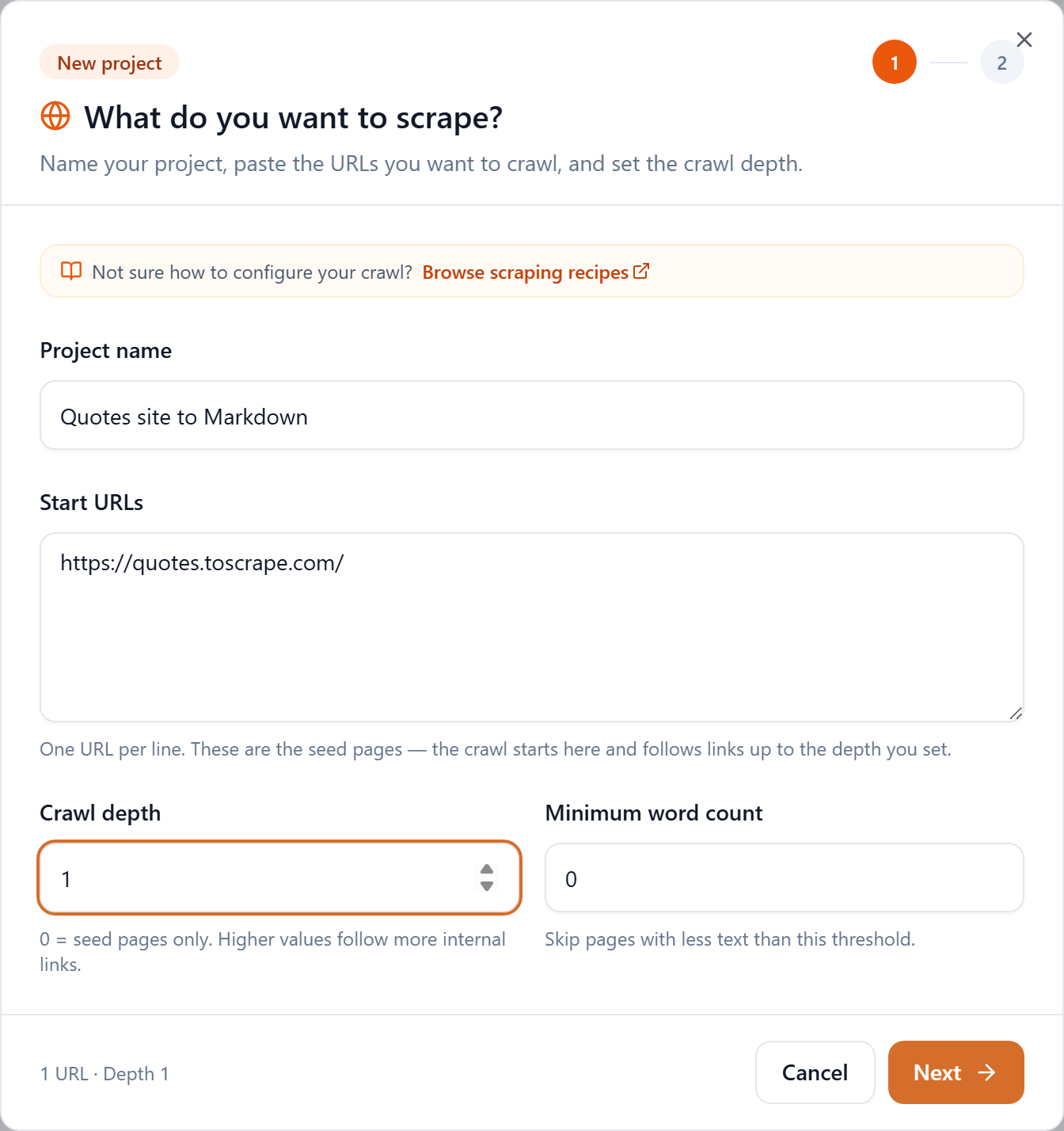
From your workspace, click New project. Give it a name you'll recognize later, then paste the URL of the site you want to save into Start URLs — one URL per line if you have several entry points.
Step 2: Choose how deep to crawl
Crawl depth decides how far FireScraper follows links from your starting page:
- Depth 0 — only the exact URLs you pasted. Good for a single article.
- Depth 1 — your pages plus everything they link to directly.
- Depth 2 — two levels deep. A good default for capturing a whole small-to-medium site.
Higher depth means more pages (and more credits — one page is one credit). If you only want a section of a site, start there and keep the depth low.
Step 3: Tidy the output (optional)
On the second step you'll find a few options worth turning on for a clean Markdown archive:
- Remove duplicate text from exported files — strips repeated headers, footers, and sidebars so each file is mostly unique content.
- Respect robots.txt — leave this on to stay within what the site allows crawlers to access.
You can leave everything else at its defaults.
Step 4: Download your Markdown
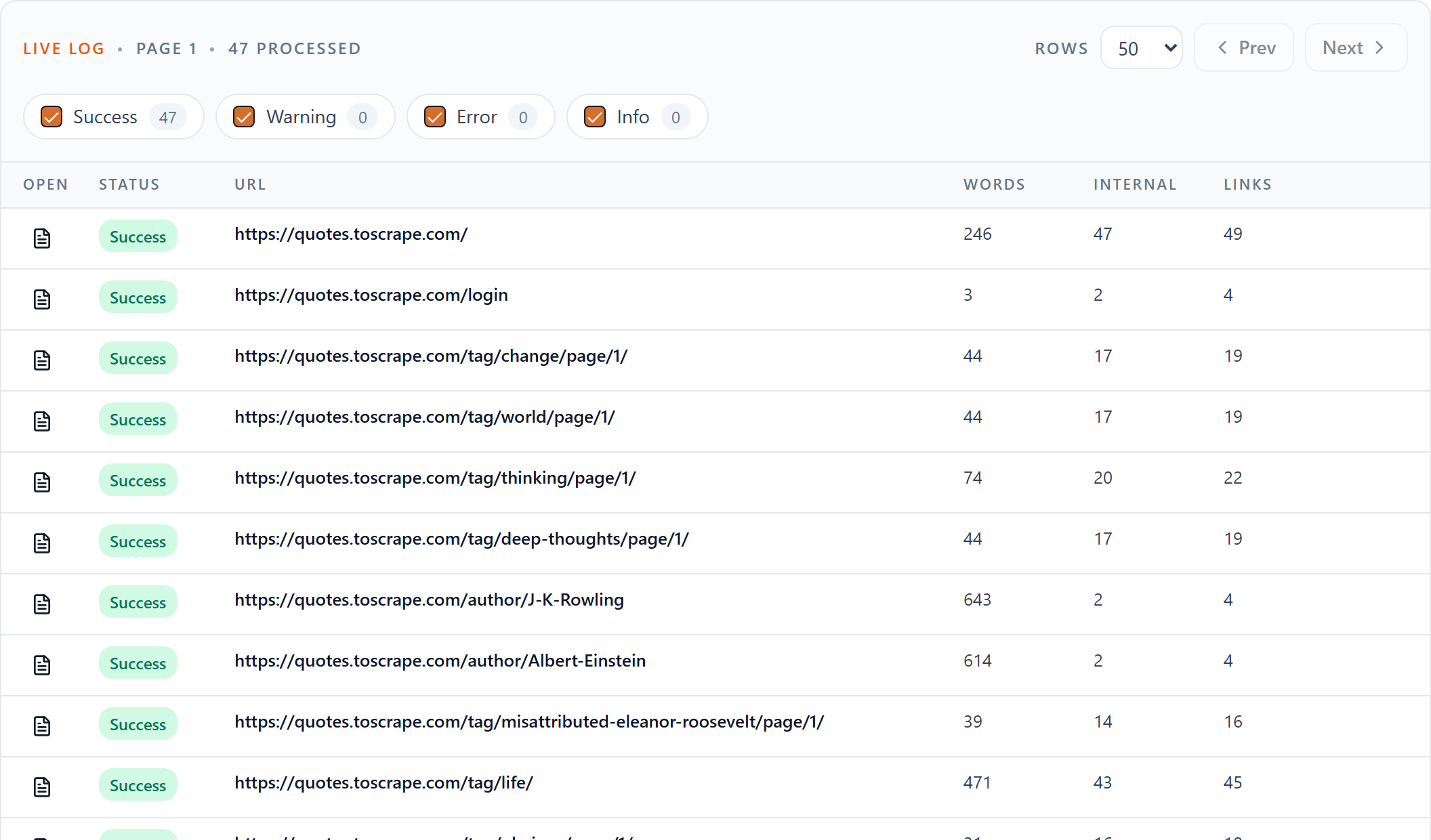
When the crawl finishes, the project page shows a Downloads row. Click Markdown to grab a file containing every crawled page as clean Markdown, separated and ready to read.

That's it. Open the file in any Markdown editor, drop it into your notes app, or pass it to an LLM as context.
Tips
- Trim what you don't want. Use Ignore URLs to skip sections like
/changelogor/tagsthat add noise. - Keep it fresh. If the site changes often, use Schedule for later to re-crawl it daily, weekly, or monthly.
- Going into a RAG pipeline? Markdown is great for reading, but if you're chunking for embeddings, the Documents or Chunks JSONL exports are purpose-built for that — see our other recipes.
Turn any website into clean Markdown
Start your first crawl in under a minute. New accounts get 1,000 free credits.