
A spreadsheet is still the fastest way to eyeball a whole website at once — sort it, filter it, pivot it, or hand it to a colleague who lives in Excel. FireScraper can crawl a site and hand you back a single CSV where every row is a page, with its URL, title, word count, link counts, and full extracted text already in columns.
This recipe walks through pointing FireScraper at a site and downloading a clean, analysis-ready CSV — no scraping code, no parsing, no cleanup.
Who this is for
- Analysts and researchers who want a site's content in rows and columns to sort and filter.
- SEO and content teams auditing titles, descriptions, and word counts across every page.
- Anyone using pandas or Sheets who'd rather start from a tidy CSV than raw HTML.
The settings at a glance
If you just want the configuration, here it is. The rest of this post explains each choice.
- Start URL
- https://example.com (the site you want to capture)
- Crawl depth
- 1 — the seed page plus everything it links to
- Minimum word count
- 0 — keep every page (raise it to skip thin pages)
- Remove duplicate text
- On — drop repeated boilerplate
- Respect robots.txt
- On — only crawl allowed pages
- Export format
- CSV
Step 1: Create a new project
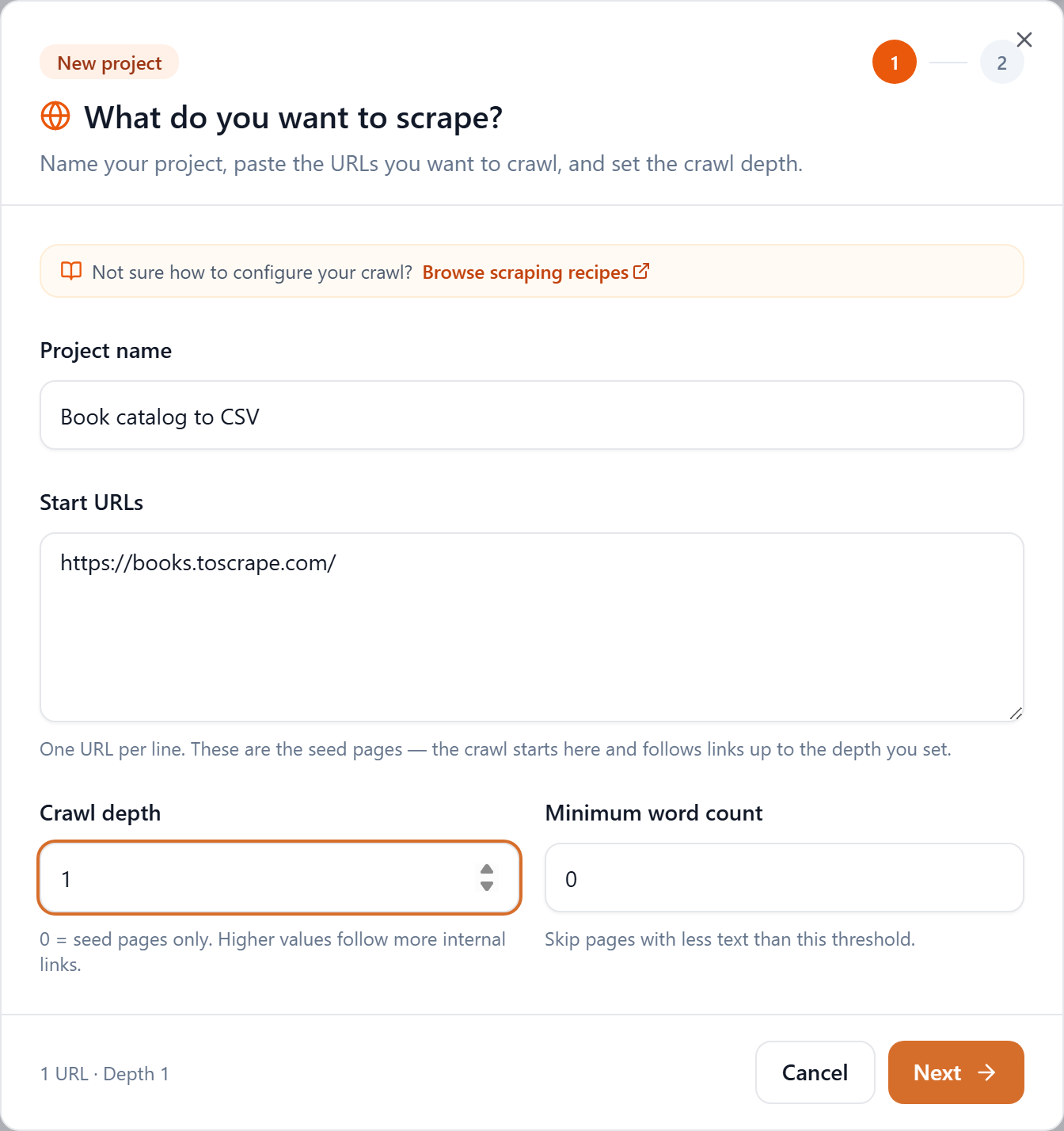
From your workspace, click New project. Give it a name you'll recognize later, then paste the site's address into Start URLs — one URL per line if you have several entry points.
Step 2: Choose how deep to crawl
Crawl depth decides how far FireScraper follows links from your starting page:
- Depth 0 — only the exact URLs you pasted. Good for a single page.
- Depth 1 — your pages plus everything they link to directly. A solid default.
- Depth 2+ — two or more levels deep, for capturing a whole site.
Every page is one credit, so start shallow and increase depth if you need more coverage. To keep noise out of your spreadsheet, raise Minimum word count to skip near-empty pages, or use Ignore URLs on step 2 to skip sections like /tag or /cart.
Step 3: Run the crawl
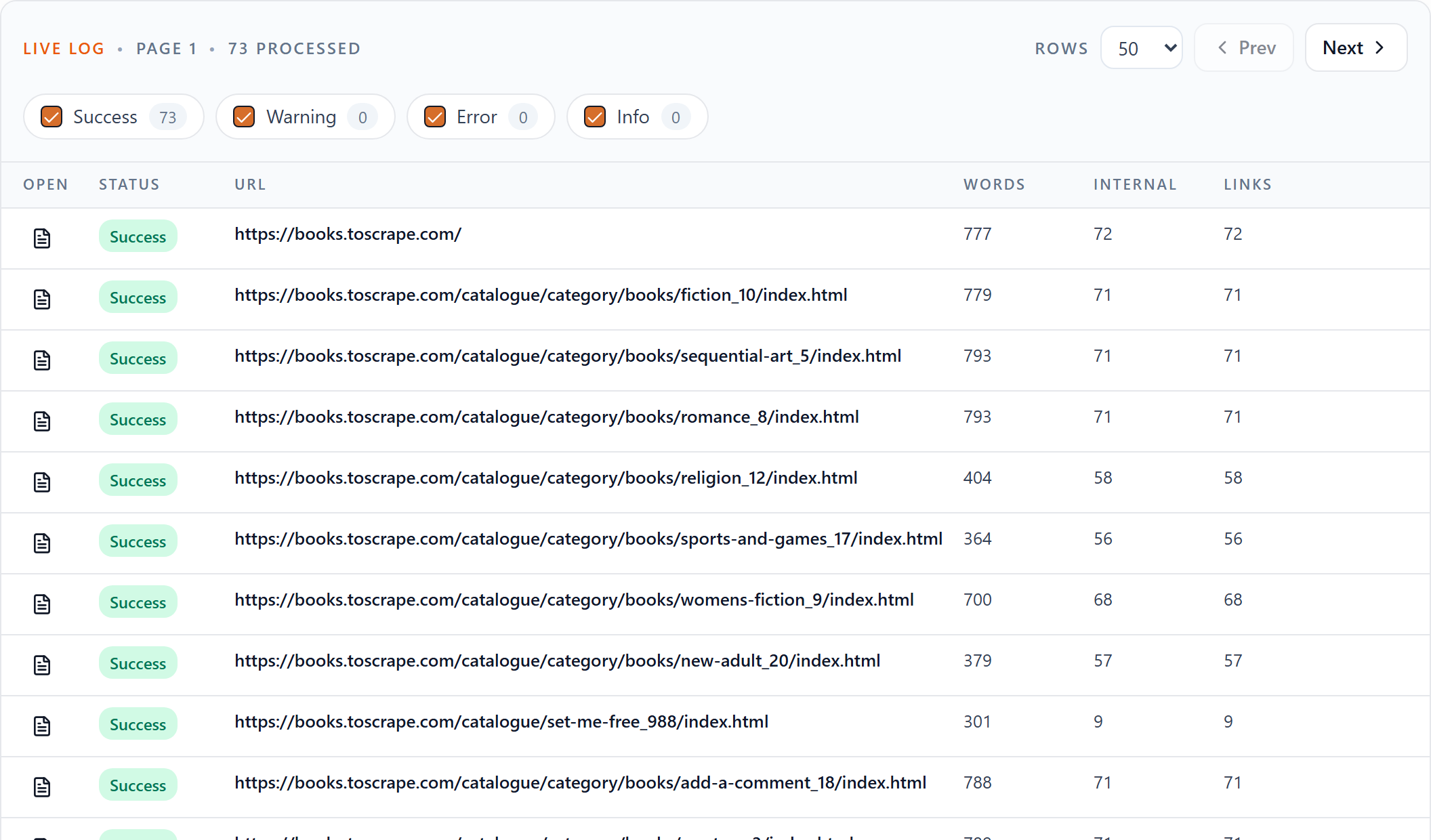
Click through to step 2, leave Remove duplicate text and Respect robots.txt on, then start the project. FireScraper crawls in real time — every page shows up in the live log as it's processed, so you can watch coverage grow.
Step 4: Download your CSV
When the crawl finishes, the project page shows a Downloads row with every export format. Click CSV.

What's in the CSV
You get one row per successfully crawled page, with these columns:
| Column | What it holds |
|---|---|
| url | The page's address |
| parent_url | The page it was discovered from |
| depth | How many links deep it was found |
| title | The page title |
| meta_description | The page's meta description |
| meta_lang | Detected language |
| publish_date | Publish date, when the page exposes one |
| num_of_words | Word count of the extracted text |
| text | The full cleaned page text |
| urls_count | Total links on the page |
| internal_urls_count | Links to the same site |
| external_urls_count | Links to other sites |
Open it in Excel or Google Sheets, or load it straight into pandas:
import pandas as pd

df = pd.read_csv("corpus-csv.csv")

# Pages sorted by length
print(df.sort_values("num_of_words", ascending=False)[["url", "title", "num_of_words"]].head())

# Find thin or missing-description pages for an SEO pass
print(df[(df["num_of_words"] < 100) | (df["meta_description"].isna())][["url", "title"]])
Tips
- Trim the noise. Use Ignore URLs to skip sections like
/tag,/search, or/cartthat add rows you don't want. - Keep it fresh. If the site changes often, use Schedule for later to re-crawl it daily, weekly, or monthly and always have a current CSV.
- Need nested data instead of flat rows? The JSON export carries the same fields in a structured shape, and Structured JSON bundles the whole crawl with a manifest — see our other recipes.
Turn any website into a spreadsheet
Start your first crawl in under a minute. New accounts get 1,000 free credits.