
How to Use Structured Extraction to Build a Knowledge Base
Most scraping tools give you raw text. That works for simple RAG pipelines where you just need page content. But what if you need specific fields from every page — the title, a summary, a category, a list of code examples?
That is where structured extraction comes in. You define a JSON schema that describes the data you want, and FireScraper applies it to every page in your crawl. The result is typed, consistent data that drops directly into your knowledge base.
What Is Structured Extraction?
Instead of getting a blob of text per page, you get a JSON object with exactly the fields you defined. Every page in the crawl produces an object with the same shape. No regex, no post-processing, no manual cleanup.
For example, if you are crawling a documentation site, you might want:
title— the page titlesummary— a one-paragraph descriptioncategory— which section of the docs this belongs tocode_examples— any code snippets on the pageprerequisites— what the reader needs to know first
Step 1: Define Your Schema
Create a JSON schema that describes the data you want from each page:
{
  "type": "object",
  "properties": {
    "title": {
      "type": "string",
      "description": "The page title or main heading"
    },
    "summary": {
      "type": "string",
      "description": "A one-paragraph summary of the page content"
    },
    "category": {
      "type": "string",
      "enum": ["getting-started", "api-reference", "guides", "troubleshooting"],
      "description": "Which documentation section this page belongs to"
    },
    "code_examples": {
      "type": "array",
      "items": { "type": "string" },
      "description": "Code snippets found on the page"
    },
    "prerequisites": {
      "type": "array",
      "items": { "type": "string" },
      "description": "Knowledge or setup required before reading this page"
    }
  },
  "required": ["title", "summary", "category"]
}
The description fields are important — they guide the extraction engine on what to look for.
Step 2: Start a Crawl with Your Schema
Using the TypeScript SDK:
import { FireScraper } from '@firescraper/sdk';

const client = new FireScraper({ apiKey: 'fsk_your_api_key' });

const session = await client.scrape({
  name: 'docs-structured',
  urls: ['https://docs.example.com'],
  maxDepth: 2,
  scraper: 'article',
  extractionSchema: {
    type: 'object',
    properties: {
      title: { type: 'string', description: 'The page title' },
      summary: { type: 'string', description: 'One-paragraph summary' },
      category: {
        type: 'string',
        enum: ['getting-started', 'api-reference', 'guides', 'troubleshooting'],
      },
      code_examples: {
        type: 'array',
        items: { type: 'string' },
        description: 'Code snippets on the page',
      },
    },
    required: ['title', 'summary', 'category'],
  },
});
Or via the REST API:
curl -X POST https://firescraper.com/api/v1/scrape \
  -H "Authorization: Bearer fsk_your_api_key" \
  -H "Content-Type: application/json" \
  -d '{
    "name": "docs-structured",
    "urls": ["https://docs.example.com"],
    "maxDepth": 2,
    "scraper": "article",
    "extractionSchema": {
      "type": "object",
      "properties": {
        "title": { "type": "string" },
        "summary": { "type": "string" },
        "category": { "type": "string" }
      }
    }
  }'
Step 3: Download Structured Results
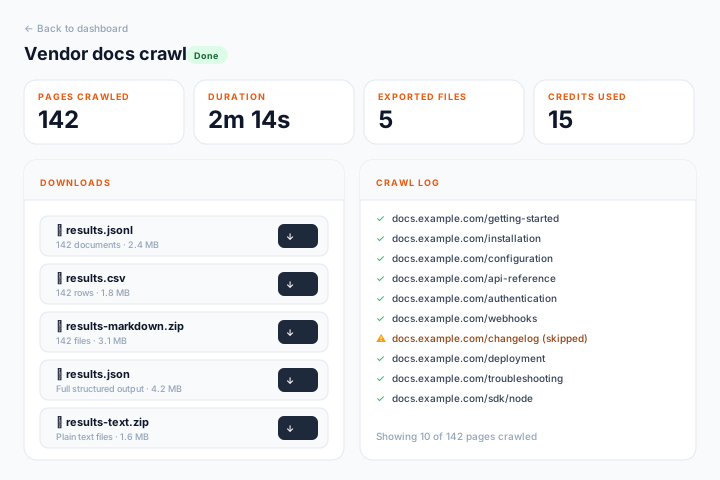
Once the crawl finishes, download the structured output:
const result = await client.waitForCompletion(session.id);
const download = await client.getResults(session.id, 'json');

// Parse the structured data
const pages = JSON.parse(Buffer.from(download.data).toString());

// Each page has your schema fields
pages.forEach(page => {
  console.log(`[${page.category}] ${page.title}`);
  console.log(`  Summary: ${page.summary}`);
  console.log(`  Code examples: ${page.code_examples?.length ?? 0}`);
});
Step 4: Load Into Your Knowledge Base
Now you have structured data that is ready for your knowledge base. Here is how you might load it into a vector database with metadata filtering:
import OpenAI from 'openai';

const openai = new OpenAI();

// Embed each page with its metadata
const entries = await Promise.all(
  pages.map(async (page) => {
    const embedding = await openai.embeddings.create({
      model: 'text-embedding-3-small',
      input: `${page.title}\n\n${page.summary}`,
    });

    return {
      id: page.url,
      embedding: embedding.data[0].embedding,
      metadata: {
        title: page.title,
        category: page.category,
        url: page.url,
        has_code: (page.code_examples?.length ?? 0) > 0,
      },
      text: page.summary,
    };
  })
);
The key advantage: because every page has the same schema, you can filter by category, search only pages with code examples, or build faceted navigation — none of which is possible with unstructured text blobs.
Schema Design Tips
Be specific with descriptions. Instead of "description": "The category", write "description": "Which documentation section this page belongs to: getting-started for setup guides, api-reference for endpoint docs, guides for tutorials, troubleshooting for error resolution".
Use enums for categorical fields. If you know the possible values, list them. This makes the extraction more consistent.
Keep schemas focused. Extract 3-5 fields per page, not 20. Each additional field increases the chance of noisy results.
Test on a single page first. Start with maxDepth: 0 to crawl just the seed URL. Verify the extraction looks right before crawling hundreds of pages.
When to Use Structured vs. Plain Text
| Use Case | Format |
|---|---|
| RAG pipeline (semantic search) | JSONL or Markdown — you want the full text |
| Knowledge base with categories | Structured extraction — you need typed metadata |
| Fine-tuning dataset | Structured — consistent fields across all examples |
| Content monitoring | Structured — extract specific metrics or fields to compare over time |
Try structured extraction
1,000 free crawl units. Define your schema, crawl any site, get typed JSON back.