
How to Monitor a Competitor's Pricing or Changelog on a Schedule
A pricing page, a changelog, a careers board, a docs site — some pages are worth watching, not just scraping once. FireScraper lets you turn any project into a recurring schedule that re-crawls on a cadence, so you always have a current snapshot to compare against last time.
This recipe sets up a weekly watch on a competitor's pricing page, but the same steps work for any page you want to keep current.
Who this is for
- Product and marketing teams tracking competitor pricing, packaging, or messaging.
- Developers keeping an eye on a changelog, status page, or API docs.
- Anyone who needs a periodic, hands-off snapshot of a site.
The settings at a glance
- Start URL
- https://competitor.com/pricing (the page to watch)
- Crawl depth
- 0–1 — just the page(s) you care about
- Frequency
- Daily, Weekly, or Monthly
- Completion webhook
- Optional — get notified when each run finishes
Step 1: Set up the crawl as usual
Click New project, name it something you'll recognize in the schedules list (e.g. "Competitor pricing watch"), and paste the page you want to watch into Start URLs. Keep the depth low — for a single pricing page, depth 0 crawls just that page.
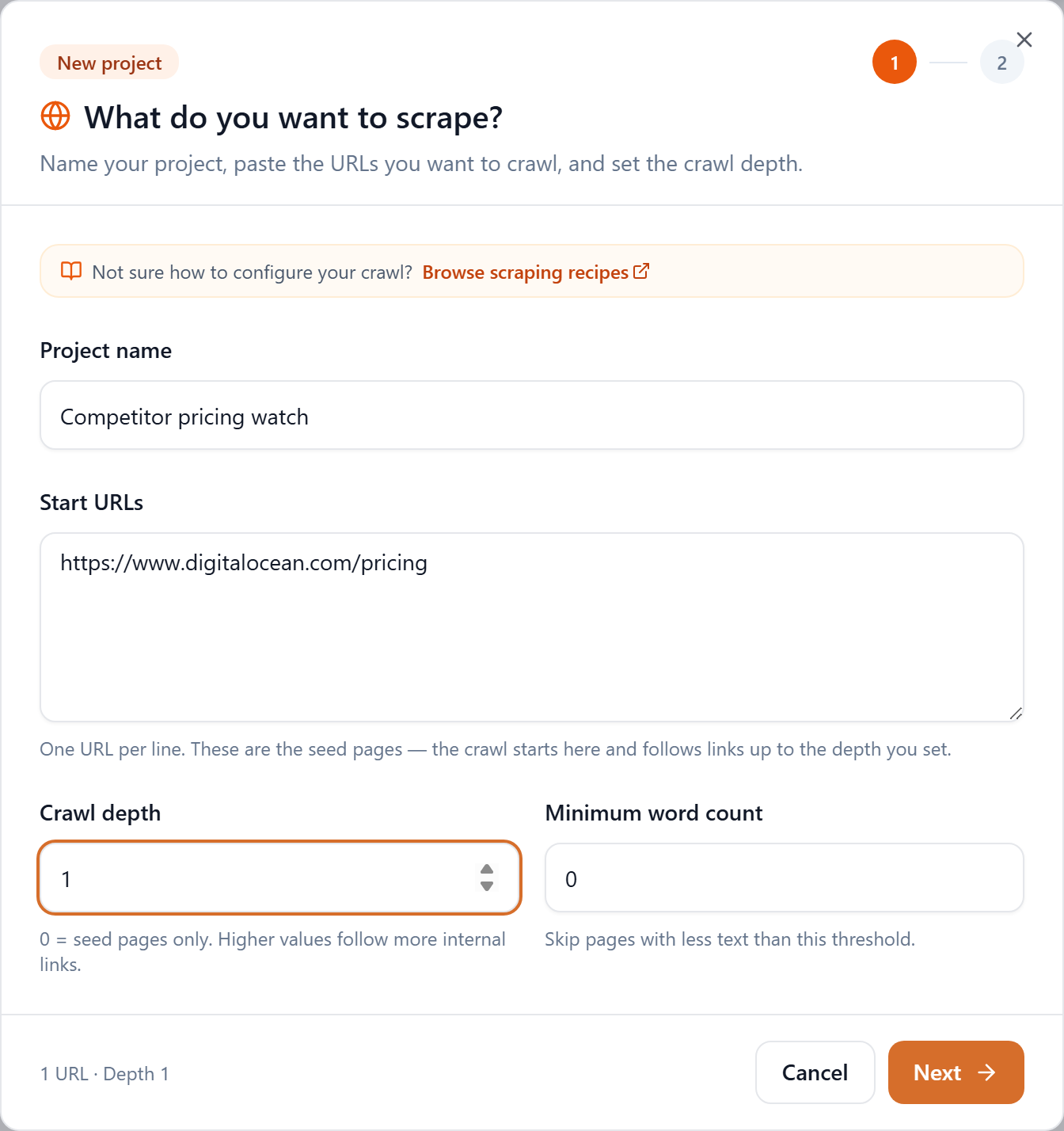
Step 2: Schedule it instead of running once
Click through to step 2. Instead of Start project, click Schedule for later. The footer turns into a frequency picker — choose Daily, Weekly, or Monthly, then click Create schedule.

Everything you configured — start URLs, depth, filters, even a structured extraction schema or webhook — is saved with the schedule and reused on every run.
Step 3: Manage it from the Schedules page
Your new schedule appears on the Schedules page. Each one shows its frequency, when it last ran, when it'll run next, and how many runs it has started.
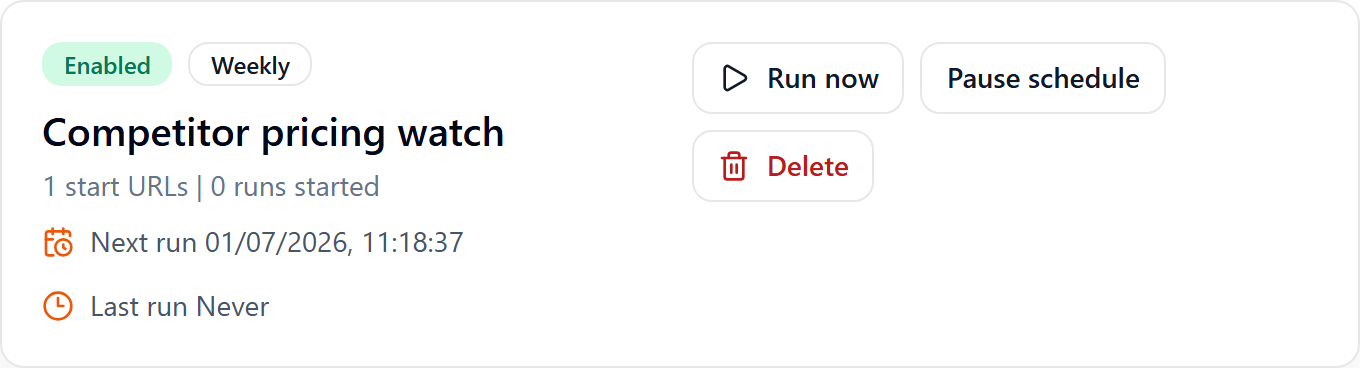
From a schedule you can:
- Run now — kick off an immediate run without waiting for the next cycle.
- Open latest run — jump to the most recent crawl's results and downloads.
- Pause / Enable — stop and resume the schedule without losing its configuration.
- Delete — remove it when you're done watching.
Each scheduled run is a full crawl with all the usual exports (Markdown, CSV, JSON, Documents/Chunks JSONL, and — if you set a schema — Extracted JSON), so you can compare any two runs over time.
Getting notified of each run
Scheduling keeps a fresh snapshot; to find out the moment a run finishes, add a Completion webhook on step 2 before scheduling. FireScraper sends a POST when each run's exports are ready, so you can pull the latest data into your own system — or kick off a diff against the previous run to surface exactly what changed.
For change tracking, pair this with a structured Extracted JSON schema (for example, a price field on a pricing page). Two runs then give you two clean records to compare, instead of eyeballing the whole page. See the structured extraction recipe.
Tips
- Keep the scope tight. For monitoring, you usually want one page (depth 0) or a small section — not a deep crawl. It's faster and cheaper, and easier to diff.
- Match the cadence to the page. Pricing and changelogs rarely change daily; weekly or monthly is often plenty and uses fewer credits.
- Name it well. A clear project name makes the schedules list easy to scan when you're watching several pages.
Keep an eye on any page, automatically
Set a crawl to repeat daily, weekly, or monthly and always have a fresh snapshot. New accounts get 1,000 free credits.