
How to Extract Product & Listing Details into Structured JSON
Crawling gives you the text of a page. Often what you actually want is a handful of fields from that text — the price, whether it's in stock, the SKU, the category — as typed values you can load into a database or spreadsheet.
FireScraper's structured extraction does this. You describe the fields you want as a small JSON schema, and every crawled page becomes a clean record with those fields filled in. This recipe covers extracting product and listing details; a companion recipe covers building a content index from page metadata.
How extraction works (read this first)
Extraction is rule-based, not AI guesswork — which makes it fast, free of hallucinations, and predictable. For each field in your schema, FireScraper looks for a labeled value in the page text: a label followed by a colon or dash, then the value. So a page whose text contains:
Price: $24.99
Availability: In stock (22 available)
UPC: a897fe39b1053632
Category: Travel
...maps cleanly onto a schema with price, availability, upc, and category fields. The field name is matched against the label loosely (case-insensitive, and unit_price matches "Unit Price"), so your schema keys don't have to be a perfect match.
It works best when a page presents details as labeled lines — which is exactly how most product pages, classifieds, real-estate listings, and spec sheets render their key facts. If your data is laid out as an unlabeled table or buried in prose, see When extraction struggles near the end of this post.
The settings at a glance
- Start URL
- https://example.com/products (listing or detail pages)
- Crawl depth
- 1–2 — reach the individual detail pages
- Extraction schema
- JSON schema with the fields you want
- Respect robots.txt
- On
- Export format
- Extracted JSON
Step 1: Create a new project
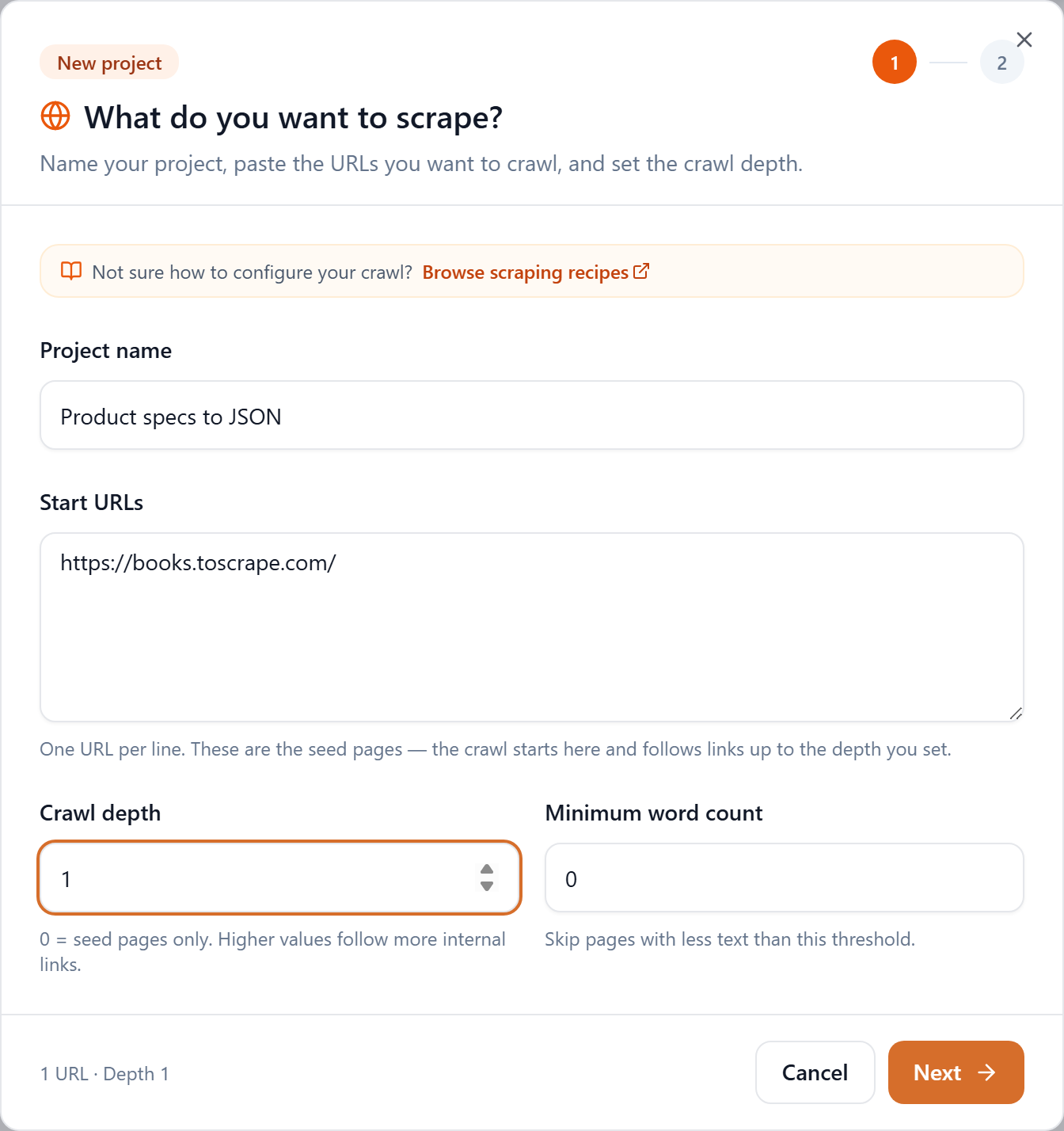
Click New project, name it, and paste the listing or category URL into Start URLs. Use a crawl depth that reaches the individual detail pages (depth 1–2).
Step 2: Add your extraction schema
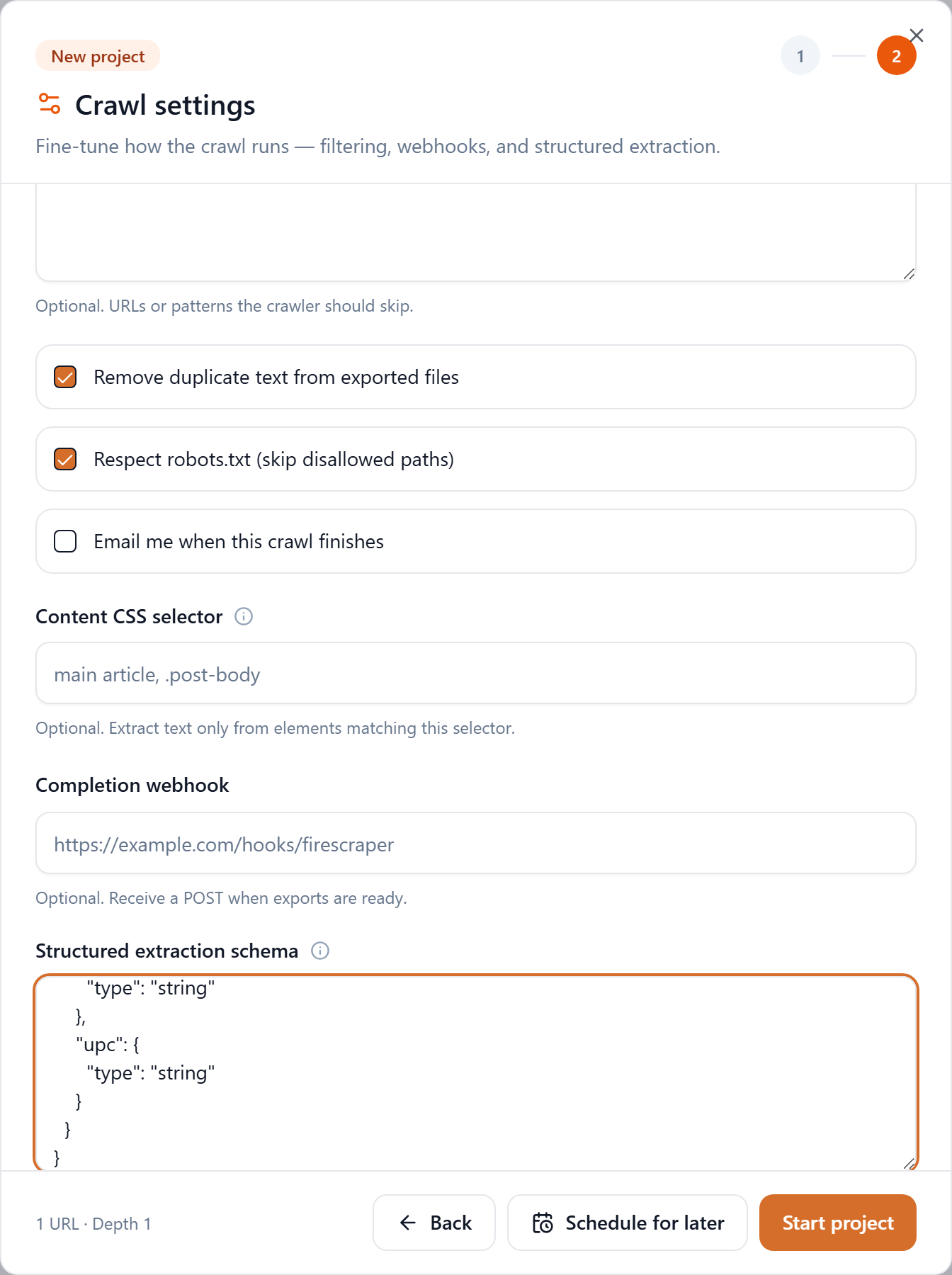
On step 2, scroll to Structured extraction schema and paste a JSON schema describing the fields you want. Each property needs a type — string, number, boolean, or array:
{
  "type": "object",
  "properties": {
    "price": { "type": "number" },
    "availability": { "type": "string" },
    "category": { "type": "string" },
    "upc": { "type": "string" }
  }
}
Types do real work:
numberpulls the first number out of the matched text, so"Price: $24.99"becomes24.99— currency symbols and labels dropped.booleanreadsyes/no/true/false/1/0into a real boolean.arraysplits the value on commas, semicolons, or pipes —"Tags: travel, history"becomes["travel", "history"].stringkeeps the trimmed text.
Step 3: Run it and download the Extracted JSON
Start the project. When it finishes, the Downloads row includes an Extracted JSON button (it appears whenever a schema was provided).

What's in the file
corpus-extracted.json holds your schema plus one record per page — each with the page's document_id, url, and an extracted object of your fields:
{
  "schema": { "type": "object", "properties": { "...": {} } },
  "records": [
    {
      "document_id": "example_com_products_chip-the-tea_0007",
      "url": "https://example.com/products/chip-the-tea",
      "extracted": {
        "price": 24.99,
        "availability": "In stock (22 available)",
        "category": "Travel",
        "upc": "a897fe39b1053632"
      }
    }
  ]
}
Load it and you've got typed records ready for a database or spreadsheet:
import json

data = json.load(open("corpus-extracted.json"))
rows = [{"url": r["url"], **r["extracted"]} for r in data["records"]]

in_stock = [r for r in rows if r["price"] and "in stock" in (r["availability"] or "").lower()]
print(f"{len(in_stock)} products in stock")
When extraction struggles
Because matching keys off labeled text, a field comes back null when the label and value aren't on the same line with a separator. If a page shows specs as a bare two-column table (UPC in one cell, the value in the next, no colon), or states facts only in prose, the matcher can miss them. When that happens:
- Narrow the page first. Use a Content CSS selector to keep only the specs region, so labels and values aren't lost among the rest of the page.
- Fall back to full text. Export CSV or Documents JSONL (which include the full page text and standard metadata) and parse the fields yourself.
- Check a sample. Open the Extracted JSON for a few pages early; if values are
null, inspect how those labels actually render in the page text and adjust.
Tips
- Reach the detail pages. Extraction runs per page, so make sure your crawl depth actually lands on the individual product/listing pages, not just the index.
- Keep schemas small. Ask for the handful of fields you need; fewer fields are easier to verify.
- Re-run on a schedule. Pair this with scheduled crawls to keep an always-current structured feed.
Turn pages into structured records
Describe the fields you want and let FireScraper fill them in. New accounts get 1,000 free credits.